Version … — pick Fresh install for a new stick,
Update existing for a stick that already runs SixBack.
⚠ Auto-migration runs by default.
Right after WiFi provisioning, SixBack will automatically
discover every SoundTouch speaker on your LAN (model whitelist
SoundTouch 10/20/30, firmware 27.0.6.x /
27.0.3.x) and rewrite its cloud URLs to point at the stick
— each speaker reboots once in the process (~60 s). Existing presets
are preserved automatically. After the initial boot pass the
auto-mode stays armed as a periodic cron (default every 30 minutes)
and picks up newcomers automatically.
If you want to drive migrations by hand, open
http://sixback.local/ right after provisioning and flip
the Auto-Migrate at Boot switch at the top
before the device finishes discovering your speakers.
Recommended hardware: ESP32-S3-DevKitC-1-N16R8 —
16 MB flash, 8 MB PSRAM, mature WiFi 5 stack. In extended end-to-end
testing this was the most robust target. ESP32 / C3 / C6 work too
(factory image auto-selected), but the C6's WiFi 6 stack occasionally
needed a second boot to discover all speakers, and the 4-MB targets
are tight on flash for future features.
Browser requirement: Web Serial is only implemented in
Chromium-based desktop browsers — Chrome, Edge, Opera, Brave
on macOS / Windows / Linux. Safari, Firefox and all mobile browsers are
not supported.
What you get
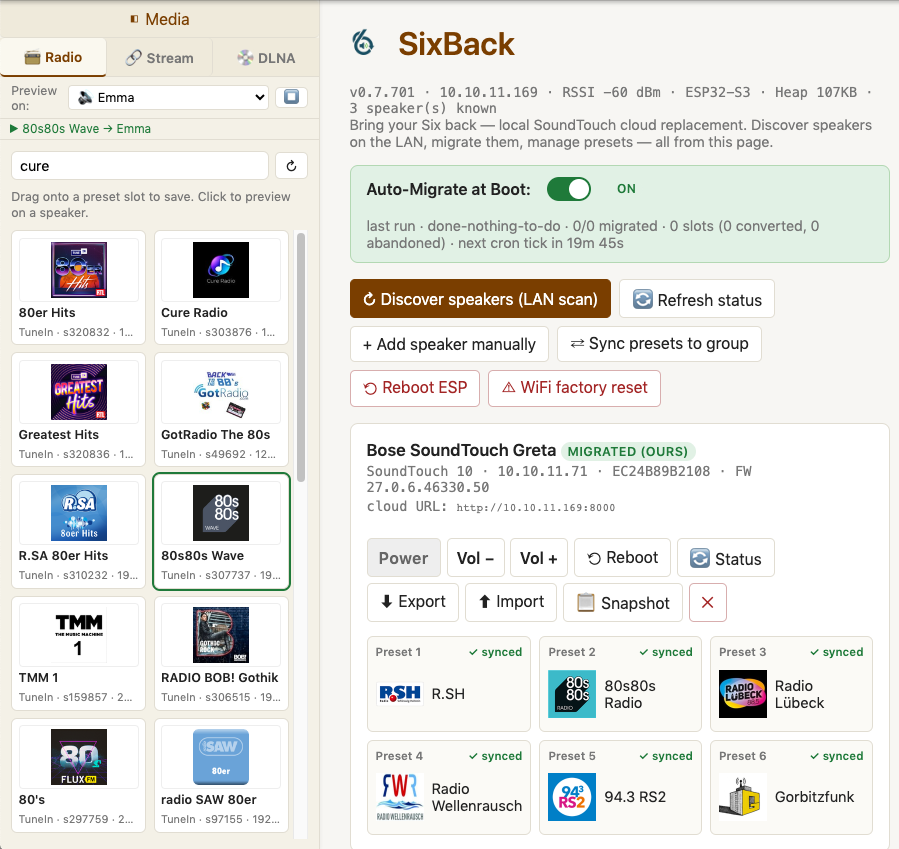
After flashing, point your browser at http://sixback.local/: discover the speakers
on your LAN, migrate them off the dead Bose cloud, and manage all six preset buttons by
drag & drop — search TuneIn / add custom streams in the sidebar, drag tiles onto preset
slots, push to the speaker.
SixBack Web UI — TuneIn search on the left, per-speaker preset slots on the right, drag & drop to assign.
Supported targets
…
How it works
Click CONNECT above and pick the serial port of your ESP32.
esp-web-tools reads the chip family from the bootloader and selects the
matching factory image from manifest.json.
The factory image — bootloader + partition table + firmware + Web UI —
is written to 0x0 in one shot. Old contents are erased.
After reboot, SixBack starts in Improv-Wi-Fi mode and
waits for credentials. esp-web-tools offers the Improv flow right after
flashing, so you can hand over Wi-Fi SSID and password from the same page.
The device then advertises itself as sixback.local on mDNS;
open http://sixback.local/ to manage your Bose speakers.
OTA updates later: once SixBack runs on the device, future
updates can be uploaded via the Web UI's System panel without
USB — that's what the *-firmware.bin and *-littlefs.bin
files next to the factory images are for.
Manual install (if Web Serial doesn't work)
Each target ships three artefacts you can download and flash manually with
esptool.py:
sixback-<tgt>-factory.bin — full image, flash to 0x0
sixback-<tgt>-firmware.bin — app only, for OTA
sixback-<tgt>-littlefs.bin — Web UI assets, for FS-OTA
License — Noncommercial Use Only.
By clicking INSTALL above you agree that you will use this firmware for
personal, hobby, research, or other noncommercial purposes only.
Selling devices with this firmware pre-flashed, offering it as a paid
service, or any other commercial use requires a separate written license
from the copyright holder. Full terms:
PolyForm Noncommercial 1.0.0
· commercial inquiries: [email protected].